Parsing PDF Files in R Studio
(All sensitive information have been removed to protect the identities of sales employees in the below examples)
GOAL | To unpack the data from nearly 1,000 pdf files into one cohesive file for analysis.
RESULTS | After writing many if/else statements and loops, one data table was produced for analysis.
RECOMMENDATION | To continue to use this code in the future when data needs to be scraped from PDF files.
Have you ever needed to scrape data from multiple PDF files? I have!
A third-party company had prompted our sales managers to rate 900 sales employees on eight competencies. The third-party company provided the ratings on all 900 employees in individual PDF files. Yes, that means we now had 900 individual PDF Files.
Setup of Scraping Data
Every file had eight tables (Figure 1). Each table represented one of the eight competencies and the attributes that made up that competency. For example, the employee in Figure 1 was rated a 7 in three of the four attributes that make up the effort competency.
We needed the data from those PDF files. Initially, there seemed to be only one solution: go through each PDF file and manually type the data into an excel sheet. However, this process would have taken too many hours to complete. I knew that there must
be a way to scrape the data from the PDF files through R Studio. It took about a week to write a series of loops to pull the data from the PDF files and write the data to one large dataset. It was surprisingly easy to read the PDF files into R Studio with one line of code (Figure 2). R Studio simply read the lines of each table.
Three problems
However, I soon ran into three main problems.
Individuals with middle initials
Space where ratings should be
Employee ID number (i.e, “Perner”) and employee name were switched
Let's start with problem #3.
I pulled the employee's name and ID number from the first page of the PDF. Unfortunately, some PDFs had the name and ID number in different places. Thus, I wrote an if/else statement (Figure 3) to help with this problem! If the first line contained letters, then it was the employee's name. If the first line did not have letters, then the first line was the employee's ID number. I have fixed Problem #3!
I wanted to pull the column headings only once from each file. But I needed a find a way to locate the column headings. To do this, I used the employee's name. So, first, I created a variable called "ind" (Figure 4) to find the location of the employee's name within the PDF file. After examing the output of "ind," the optimal row to pull the column headings was from the fourth mention of the employee's name.
However, the inconsistencies caused by problem #1 warranted an if/else statement (see Figure 4). The first two "if" statements pulled the column headers from the line where the middle initial matched the spacing from the fourth mention of the employee's name. This way, all of the column headings would match no matter the length of the employee's name. I have fixed Problem #1!
Now I was ready to pull the employee competency ratings for all eight competencies. Starting with the first competency, "effort,"
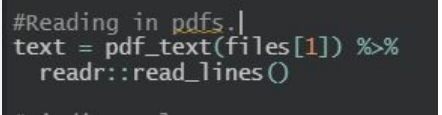
Figure 2
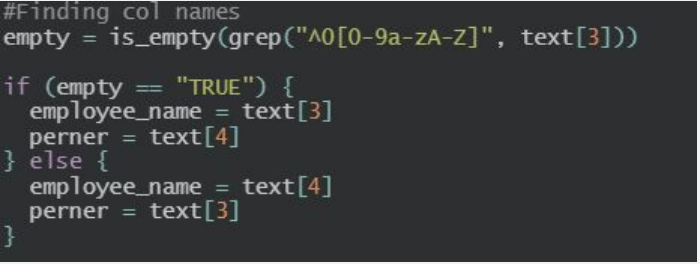
Figure 3
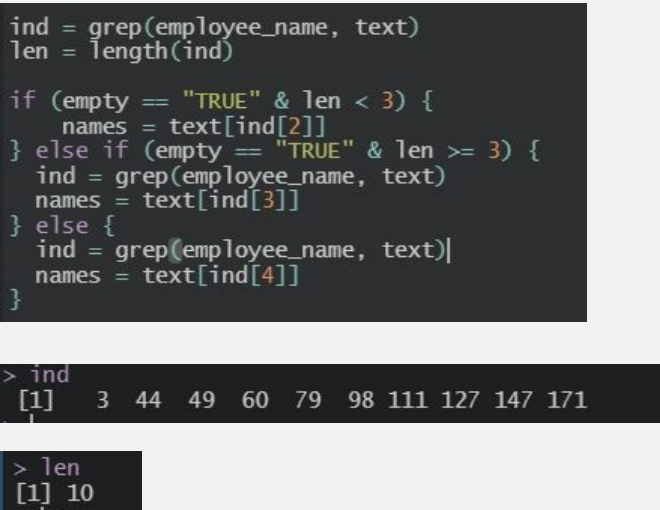
Figure 4

Figure 5

Figure 6

Figure 7

Figure 8
I needed to find the first mention of "effort" in the text. Once I found the location, I used that information to subset the "effort" competency information from the rest of the text (Figure 5). The result is the information represented in Figure 6. Again, I did this for all eight competencies.
Upon examining the result in Figure 6, I knew I had a spacing issue (aka problem #2). I needed the line "is outcome-focused.." to pair up with the competency ratings in the following line. I decided to pull each attribute and its ratings separately and combine them to remove the additional space. Figure 7 is the result of that maneuvering! I have fixed Problem #2.
After doing this for every attribute in the “effort” competency, plus adding the column names back, I ended up with an actual data table (see figure 8).
Final Result
Then I added all of these tables together to create one data set! Once I knew I could make a complete dataset from one file, I ran a loop through all 900 PDF files to compile all of the data into one large dataset. The whole loop took less than 60 seconds to complete! Now, when we needed to update these competency scores in the future, I had code ready to go to compile the data. Both time and money saved!
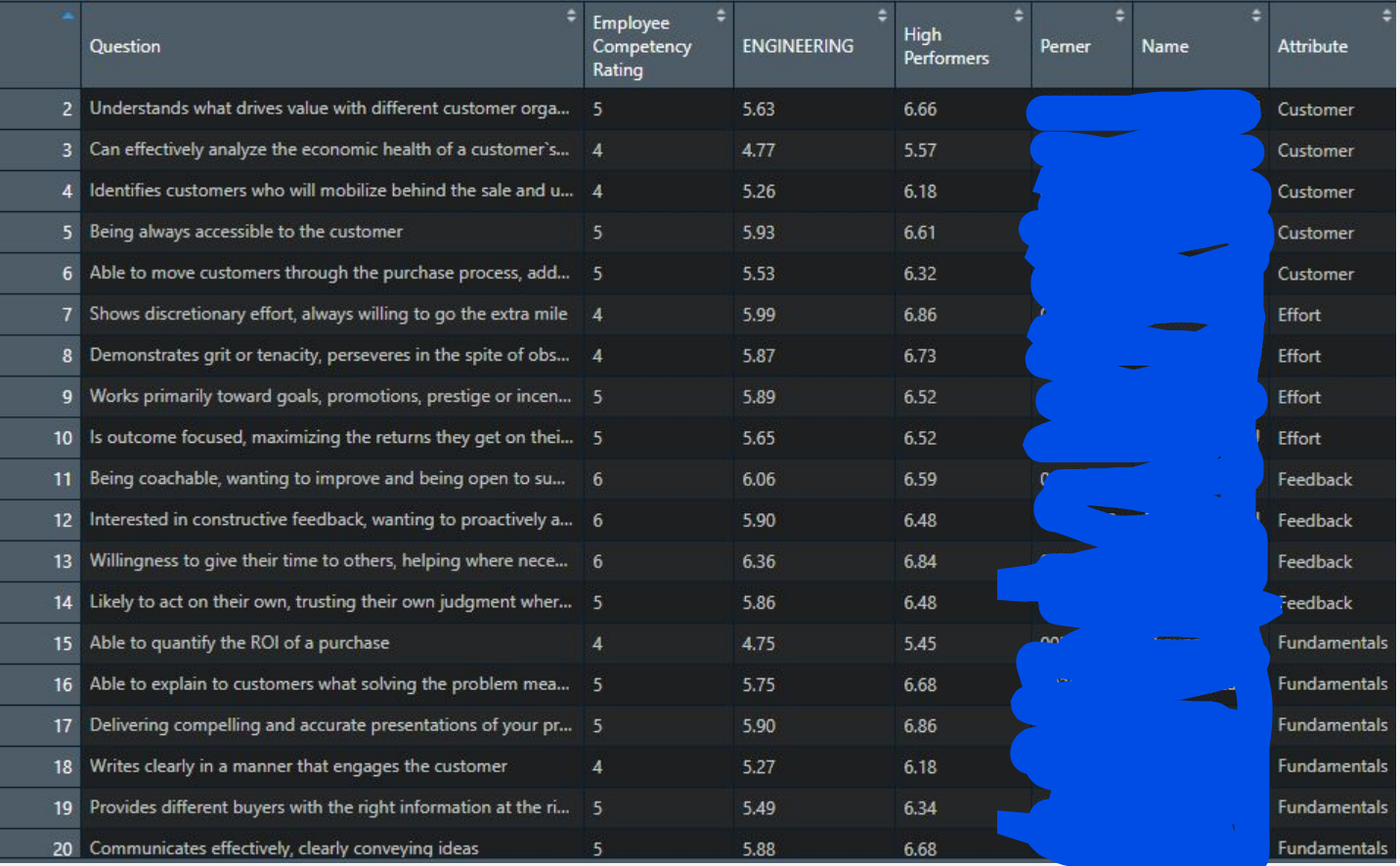
Figure 9